Robot introduction
Bots are third-party applications that run on Potato. Users can interact with bots by sending them messages, commands, or inline requests. Bot developers can call via HTTPS requestsRobot APIVarious robots with different functions have been developed.
1. What can be done with robots?
Robots are commonly used for the following purposes
- Automatically publish news notifications, such as news robots. After receiving the latest news, they can be pushed to users who subscribe to the robot as soon as possible. Another example is the monitoring alarm robot, which can monitor the running status of the server. If an abnormality is found, it can immediately send a message to notify the service manager.
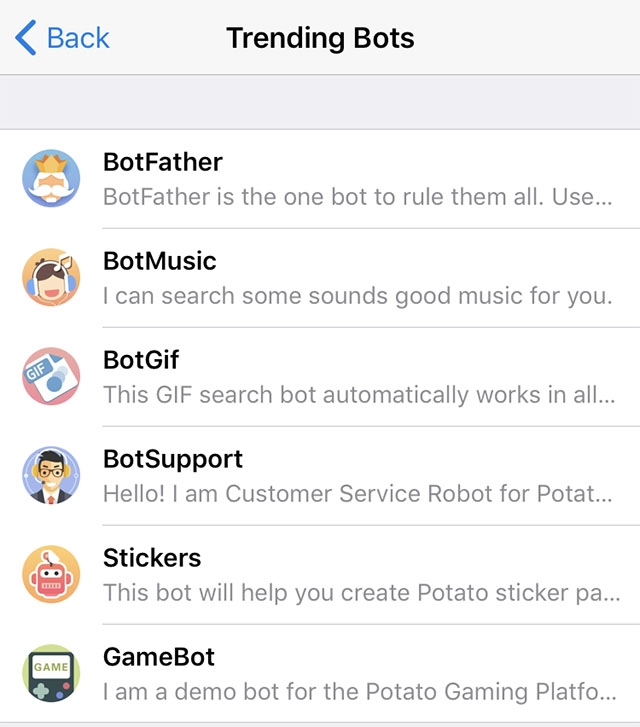
- It can be integrated with external services to enrich Potato chat. For example, it can be integrated with a gif image server to allow gif robots to search for various animated images, making Potato chat more interesting and convenient. BotGif , BotMusic, BotVote
- Custom tool services. For example, weather forecast robots, translation robots, flight schedule inquiry robots, picture robots BotPic
- Since Potato is free and open, robots can do almost any interesting thing.
2. How do robots work?
- Essentially, bots are special accounts on Potato that don't require an additional phone number to create. Users can interact with the bot in two ways
- Send messages and commands to the bot by chatting directly with it or adding it to a group. For example, when chatting with the @BotMusic robot, you can search for your song information by directly sending the song name.
- To interact inline, enter @username directly in the input box By searching for keywords, the robot can query the content you are looking for and display it in the chat window. Users can choose to send the queried content to any chat object, group or channel, such as @pic Sports car, you can get many pictures of sports cars.
- Messages, commands and requests sent by users will be delivered to the Potato server, The Potato server forwards the message to the user's own robot service, thus establishing a channel for encrypted interaction between the Potato service and the robot. The robot and Potato server need to passRobot APIproceed.
- For details on robot development, please refer to Bot API
3. How to create a robot?

Search for @BotFather in the Potato client and complete the following steps:
- Open the BotFather chat box and enter the /newbot command.
- Enter a nickname for the bot.
- Enter a unique username for the bot.
- Creation is complete when the creation success message and token are received.
4. What is the difference between robots and ordinary users?
- The bot has no online status and no last seen timestamp, just one botTags can clearly distinguish ordinary users from robots.
- The robot's message cache time is limited - if a message sent to the robot has been processed or has not been processed within the specified time, the message will be cleared from the cache.
- For security reasons, bots cannot actively send messages to users. The user must first send a message to the robot, similar to a subscription to gain trust, and then the robot can send a message to the user.
- The robot username starts withbotEnding, except official robots.
- When adding a robot to a group, the robot must set the privacy mode to false in order to receive messages from the group.
- The robot does not need to eat or sleep, and it operates 24 hours a day.
5. Where can I find bots?
-
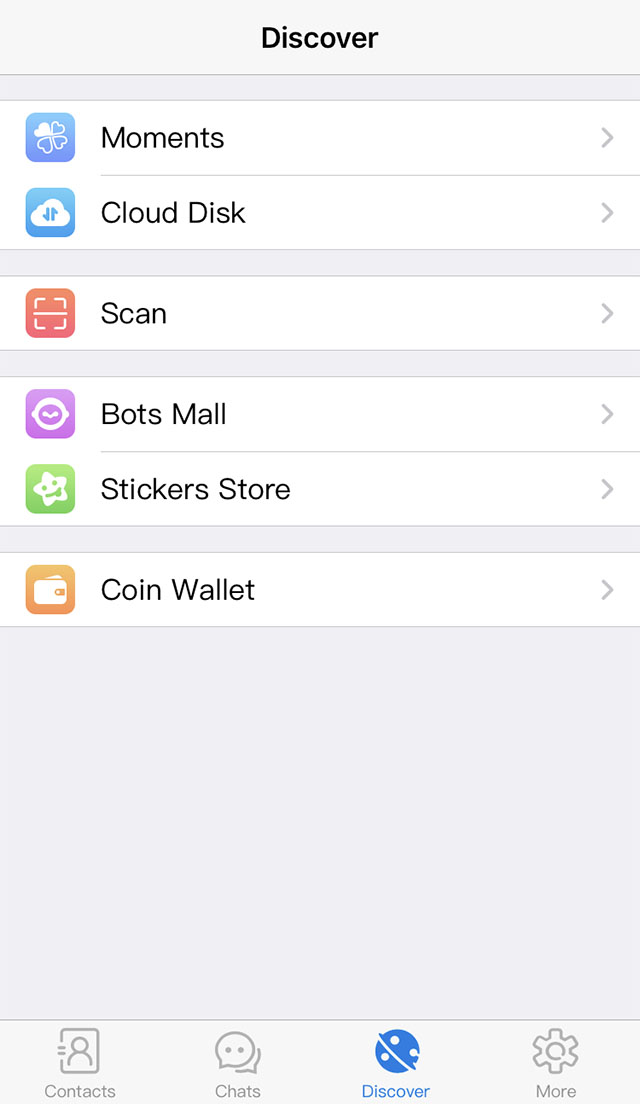
There are many robots on Potato, including official robots and robots from third-party developers. How to find official robots:
- Open the bottom navigation on the far rightdiscoverbutton
- found Robot Hall Just enter
-
As there are many third-party robots, users can go to forums or groups to inquire.
6. Robot features
The Potato robot has many unique features, such as being able to create two types of buttons in chat, inline buttons and keyboard buttons, supporting common markdown syntax, making text layout more beautiful, and supporting inline mode.
inline mode
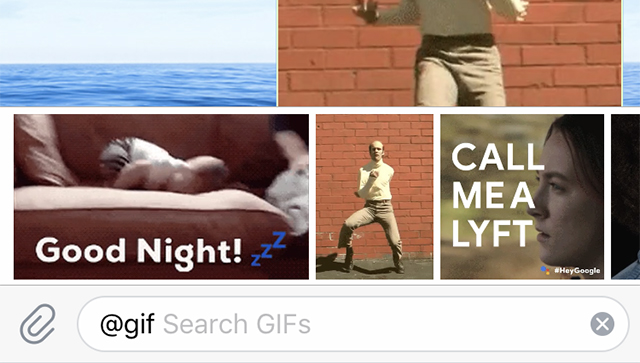
- Users can interact with your bot via inline queries directly from the text input field in any chat box. All they need to do is start a message with your bot's username and then type a query.
- After receiving a query, your inline bot can return query results. The user clicks to select one of the results, and it is sent to the user's currently open chat.
This way, people can send the query in any chat, group, or channel.
keyboard
- Of course, traditional chatbots can be taught to understand human language. But sometimes you want the user to provide some more convenient input - this is where custom keyboards become very useful.
- Whenever your bot sends a message, it can be delivered via a special keyboard with predefined reply options (see ReplyKeyboardMarkup). Potato clients that receive the message will display the keyboard to the user. Tapping any button will immediately send the corresponding command. This way you can greatly simplify your interaction with the bot.
- Currently, the keyboard supports text and emojis. Here are some custom keyboard examples:
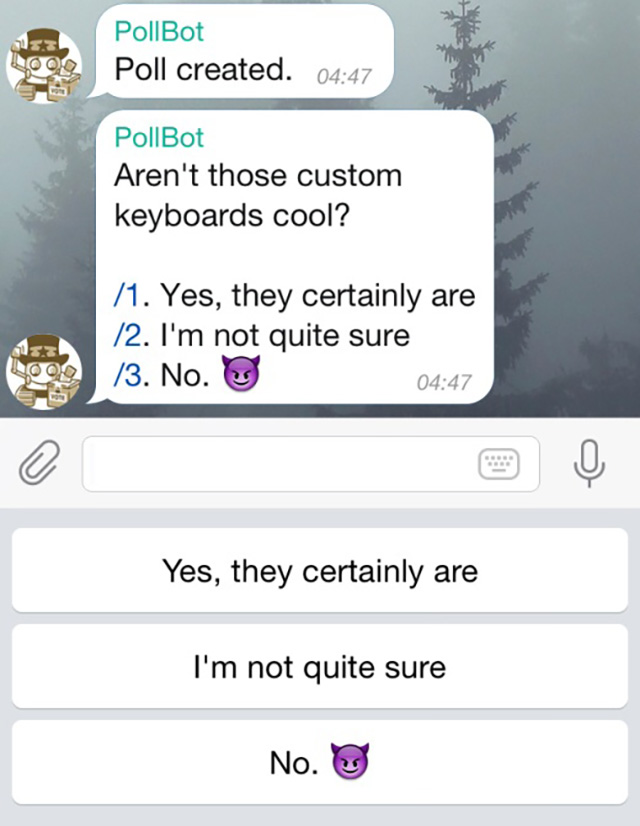
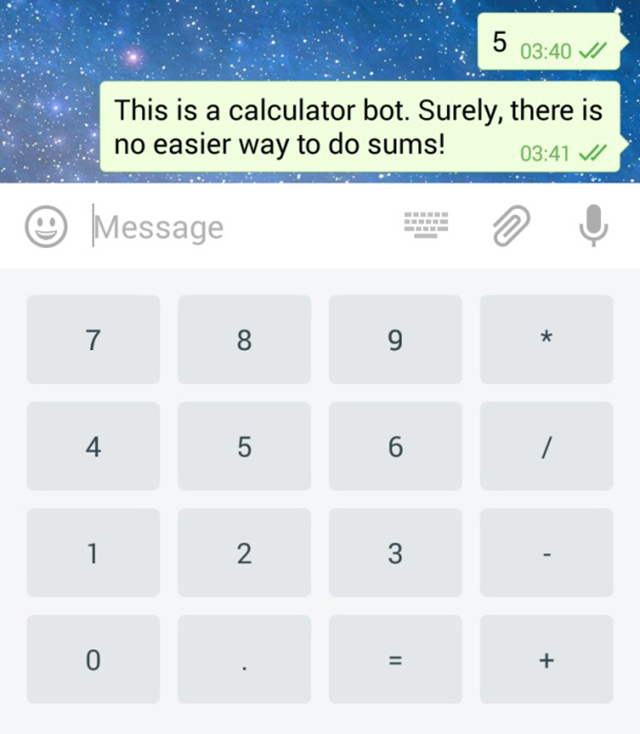
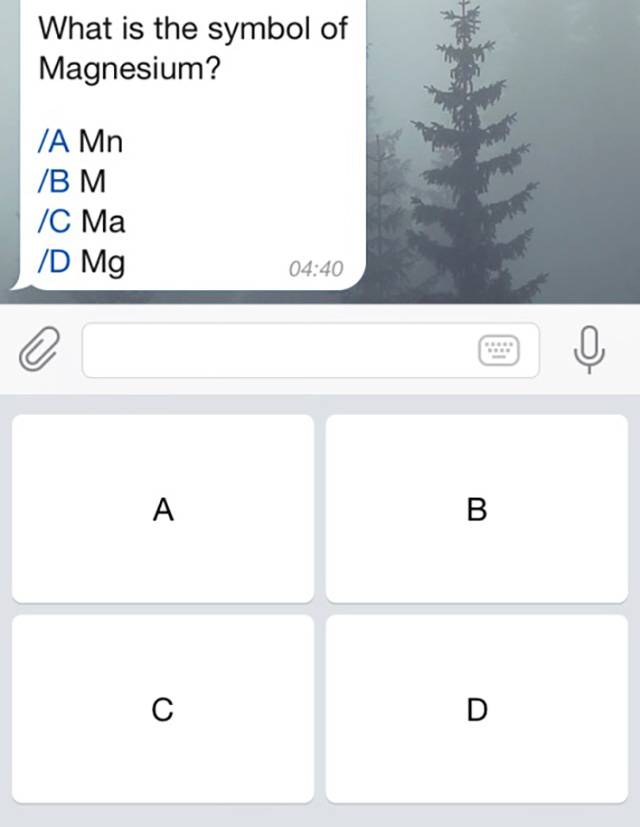
- Please refer to the Send Keyboard ButtonBot API sendTextMessage interface.
inline button
- In some cases, you want to do so without sending any messages to the chat room. For example, when your users change settings or browse search results. In this case, you can use embedded keyboards that are integrated directly into the message they belong to.
- Unlike the custom reply keyboard, pressing buttons on the embedded keyboard does not cause a message to be sent to the chat room.
Instead, the embedded keyboard supports buttons that work behind the scenes: callback buttons, URL buttons, and toggle to inline buttons.
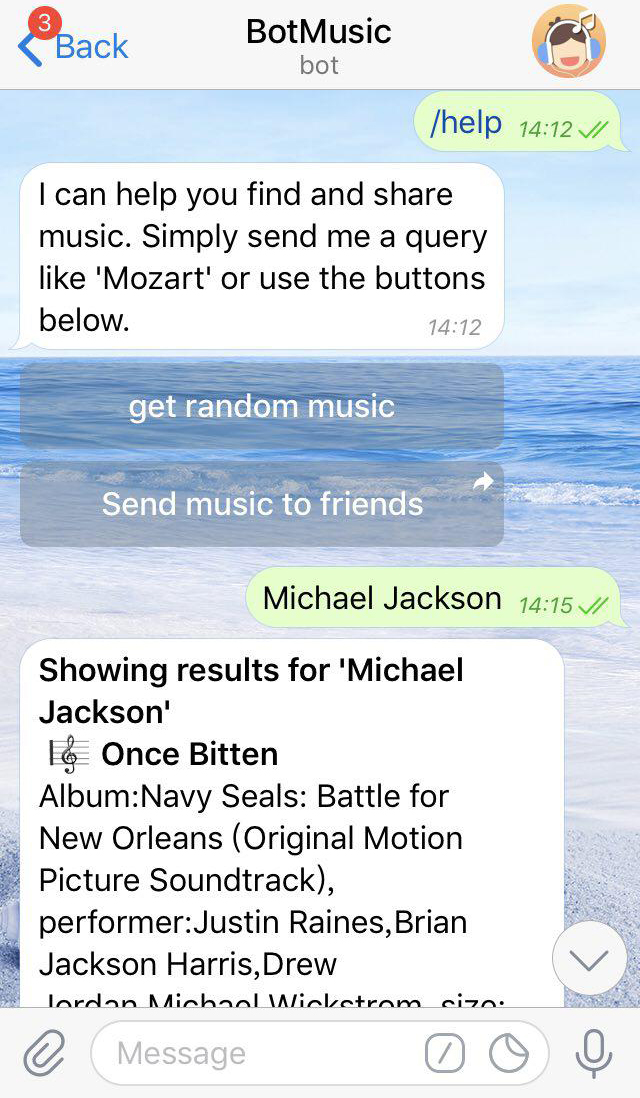
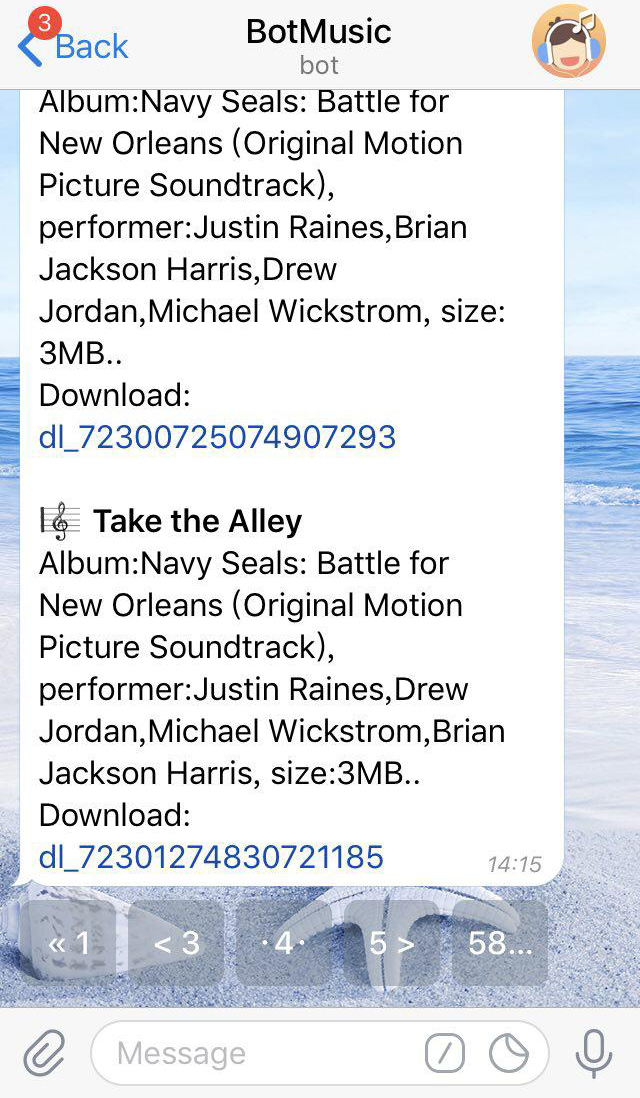
- When using callback buttons, the bot can update existing messages (or just update its keyboard) to keep the chat tidy. Check out these example bots to see the built-in keyboard in action: @music, @vote
command
- Commands provide a more flexible way to communicate with your robot. The following syntax can be used:
- /command [optional] [parameter]
- The command must start with a "/" symbol and must not exceed 32 characters. Commands can use Latin letters, numbers and underscores. Here are some examples:
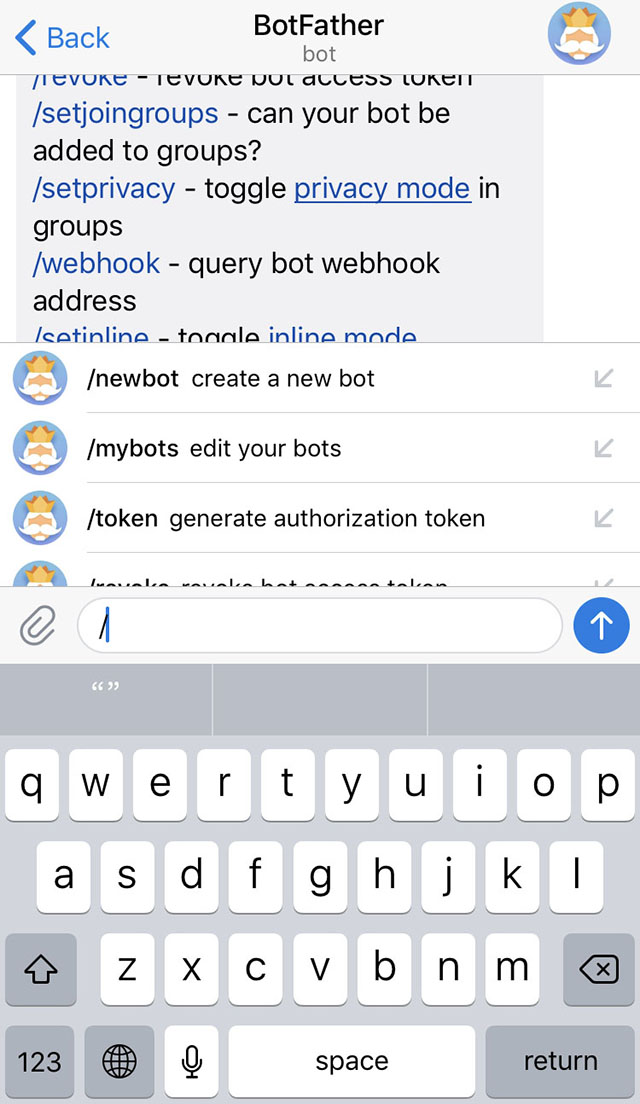
/get_messages_stats/set_timer 10min Alarm!/get_timezone London, UK - Display an extra (/) button in the input field in all chats with the bot. Tapping it will type "/" and display a list of commands.
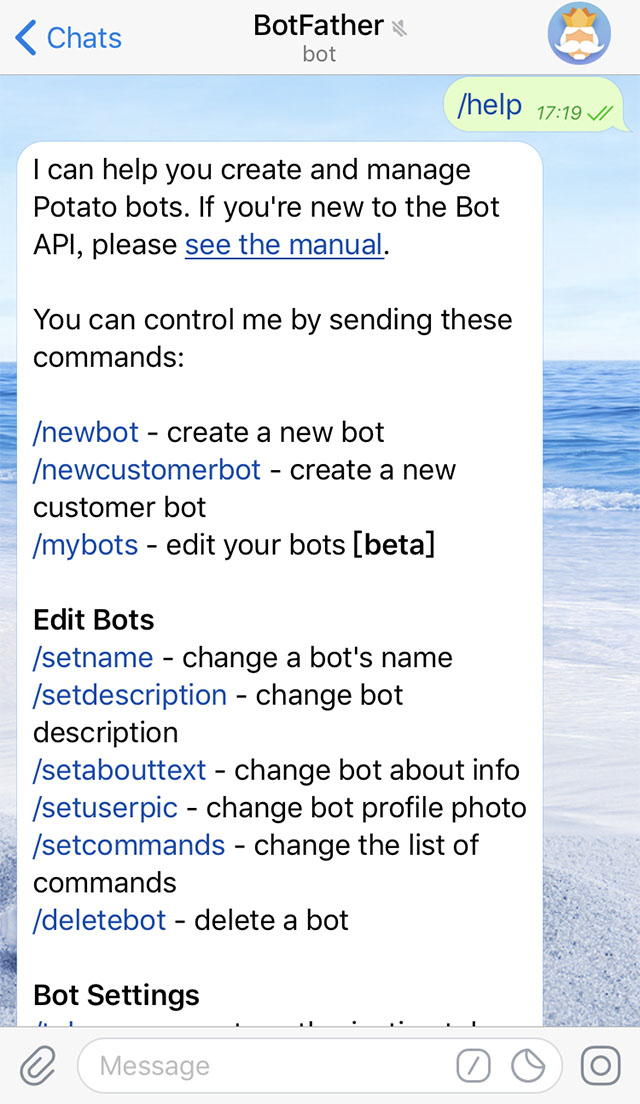
- Highlight the /command in the message. When the user clicks on the highlighted command, the command will be sent immediately
- If you have multiple bots in the group, you can add the bot username to the command to avoid confusion:
- /start @TriviaBot
- /start @ApocalypseBot
- This is done automatically when selecting a command through the suggestion list. Remember, your bot must be able to handle the commands following its username.
Set command
- To make it easier for users to use the bot, we recommend that all developers support some basic commands.
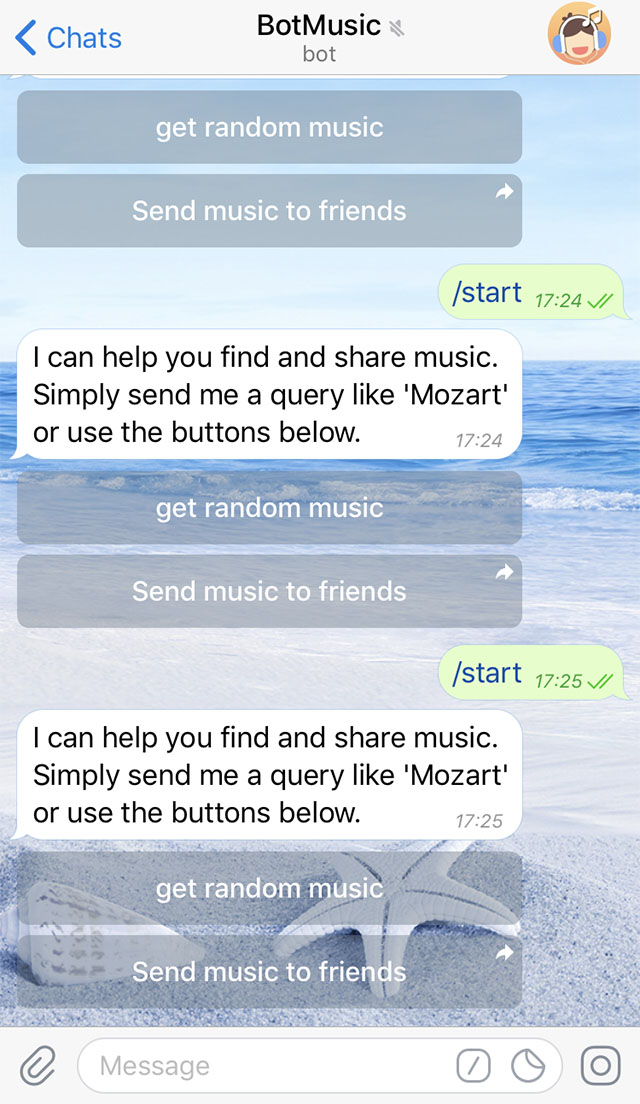
- /start--For example, start interacting with the user by sending a greeting message. This command can also be used to pass additional parameters to the robot.
- /help - Returns a help message. It can be a short text about what your bot can do and a list of commands.
- When a user first opens a conversation with the bot, they will see astartbutton. Help and settings links will be available in the menu on the bot's profile page.
privacy mode
- Bots are often added to groups to automatically manage the group or send notifications. According to different needs, different settings need to be made for the privacy mode of the robot:
- By default, the robot's privacy mode is turned on, so that the robot will not receive messages sent by users in the group, and will not need to process a large number of irrelevant messages, saving server resources.
- If the robot's business needs to receive messages from the group, privacy mode must be disabled
- Enable or disable privacy mode in @BotFather
7. BotFather
Skip to top to learn more about the Potato robot » @BotFatherCan help you create Potato personal robot and manage your robot.
Create a new bot
- Use
/newbotcommand to start creating your robot. You only need to fill in the robot nickname and robot name settings to complete the creation of your personal robot.@BotFatherA token will be generated for the authorization of your new robot; - The robot nickname will be used to generate the robot business card;
- The bot name will allow users to discover your bot. The bot name must use a-z, 0-9 and _. The minimum length is 5 characters and the maximum length is 24 characters. Cannot start with a number and end with bot (not case sensitive);
- The generated token (such as "110201543:AAHdqTcvCH1vGWJxfSeofSAs0K5PALDsaw") is authorized to the robot and sends the request to Potato Necessary for Bot API service;
Generate new token
- If you find that your token has been stolen or want to update it, you can use
/tokenThe instruction generates a new token.
BotFather command
- /mybots - Returns a list of robots with convenient controls including robot token, editing, setting, deletion and other functions.
Edit your bot
- /setname - Edit robot name
- /setdescription - Edit the bot profile, a short text (up to 512 characters) describing your bot, which will appear in 'What can this bot do?';
- /setabouttext - Edit the bot about with a shorter text (up to 120 characters). This information will be displayed on the bot's profile page and when you share it with others. This information will also be sent;
- /setuserpic - Edit the robot avatar and set a reasonable avatar for the robot;
- /setcommands - Edit bot commands that users will see along with a list of command descriptions when they type / in the chat box with your bot. It is recommended that instructions use alphanumeric characters and underlines, no more than 32 characters, not case-sensitive, and instruction text descriptions;
- /deletebot - delete bot
8. inline mode
- In addition to the convenient command mode, Potato can also useinline modeInteract with your bot. If you enable this feature, users can call your bot by @bot name in any chat dialog box, and developers will receive inline push messages to provide feedback on the corresponding feature.
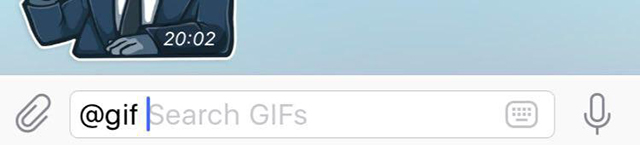
- First you need to@BotFatherused in/setinlineTurn on the inline mode of this feature and set a query prompt so that when users @robotname, it will tell them the query content from your bot (e.g., Search GIFs), or use /empty to turn this feature off.
- For details, seeBot API Manual。
Inline query results
- Potato currently supports 5 types of inline query result display, such as: articles, web pages, pictures, videos, and GIFs.
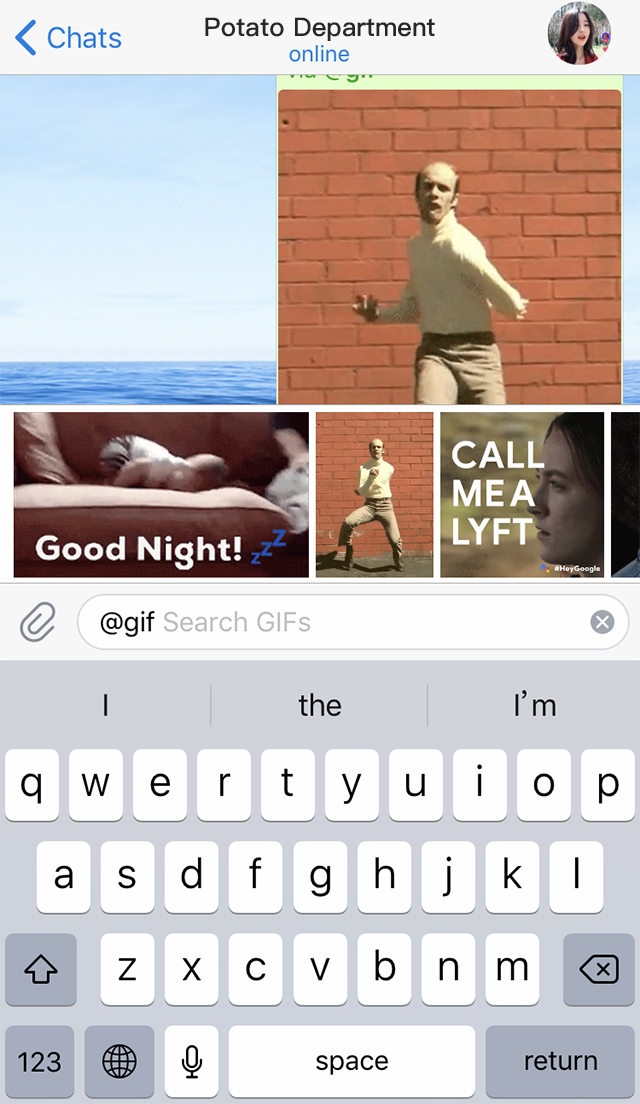
- Clients can display results using vertical or horizontal scrolling depending on the type of content:
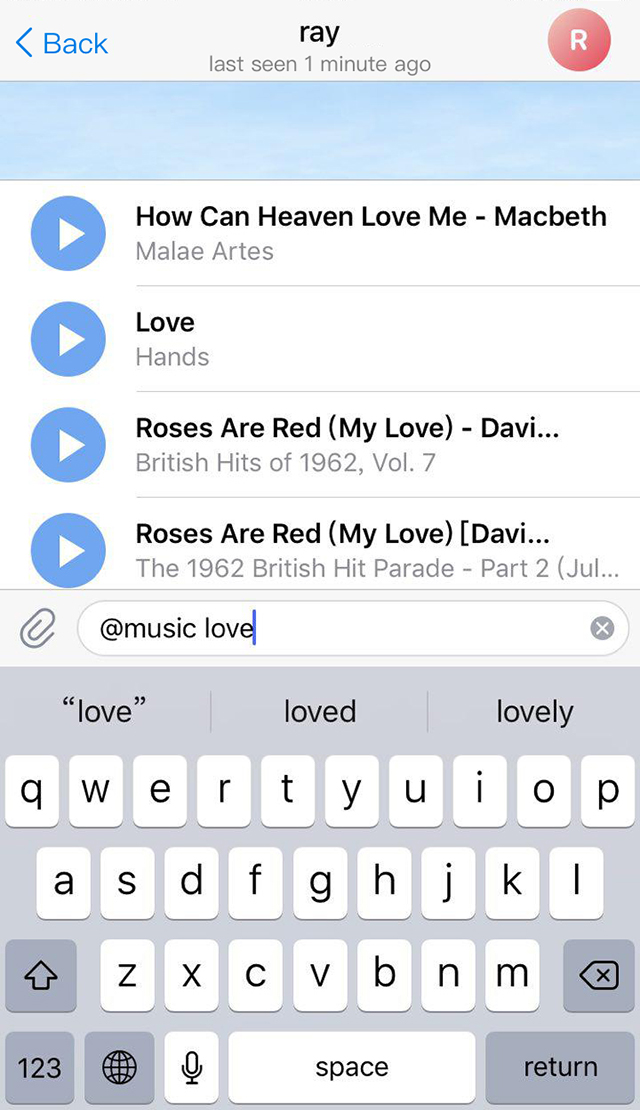
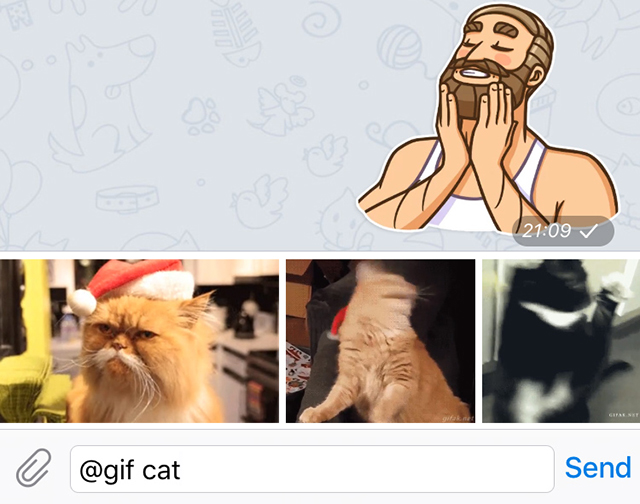
- The user clicks on the query result to send and clear the current query content.
Switch inline/PM mode
- Some embedded bots can benefit from this, for example by connecting them to accounts on external services such as YouTube. We've provided an easy way to switch between private chats with the bot and any chat the user wishes to share inline results.
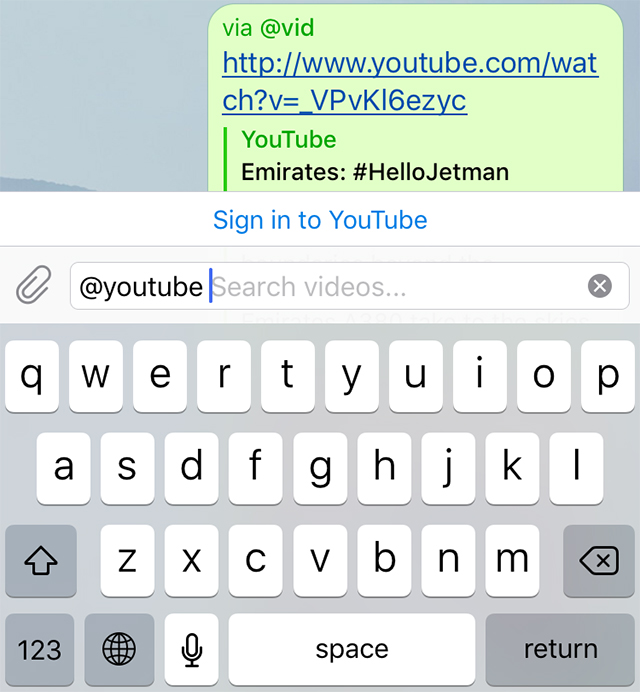
- You can display a special "Switch to PM" button above your inline results. This button will open a private chat with the bot and pass the parameters of your choice so that you can prompt the user for relevant setup actions. Once done, you can useswitch_inline_queryThe custom keyboard returns the user to the original chat interface.
spread
- Messages sent inline will carry your bot information in the header.
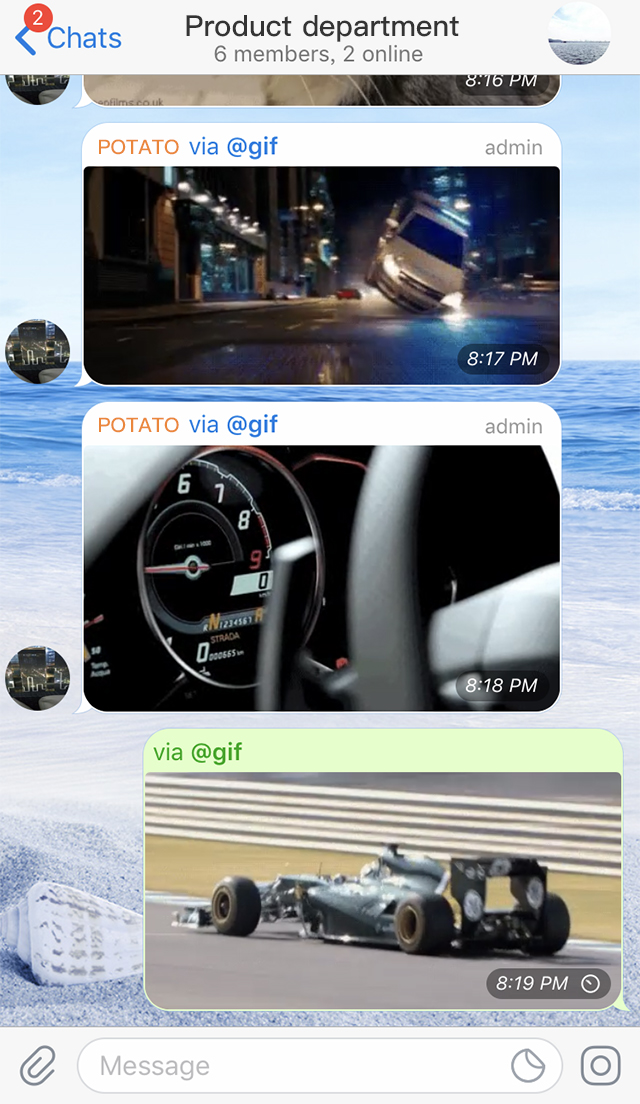
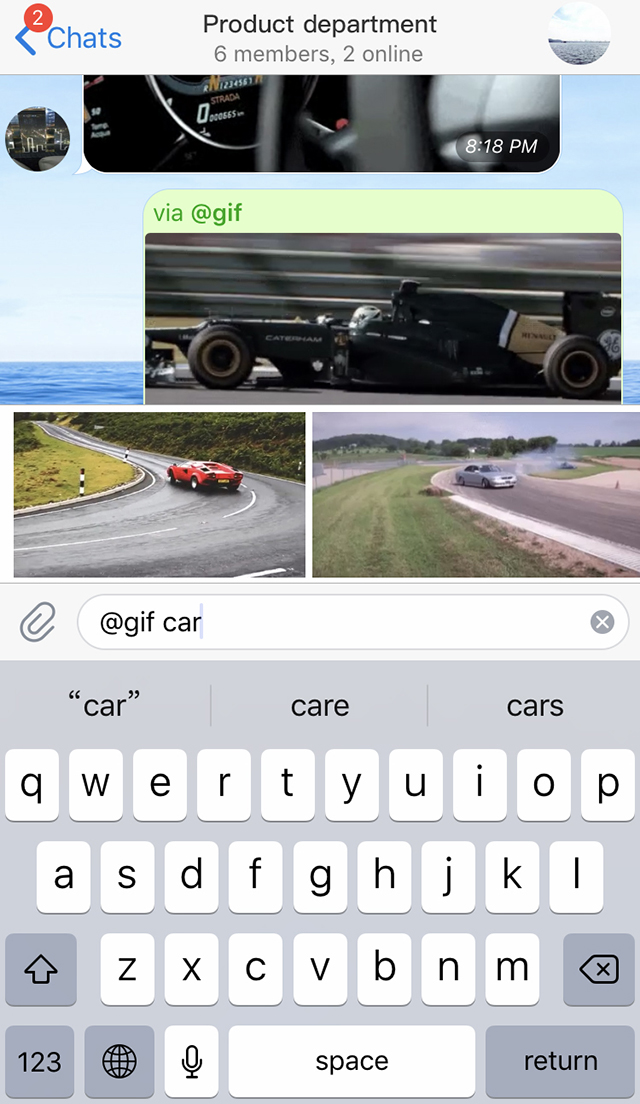
- When the user clicks on the bot username in the message title, the query content will be automatically inserted into the input box.
Inline mode example
- You can use the following official bots that contain inline functionality: @gif – GIF search @music – MUSIC search @app – APP search @vote – Search polls
9. ADBot
Note:
- ADBot must first be added to the group to be managed;
- ADBot only supports super group management;
- ADBot must be set as the super group administrator and given corresponding permissions;
How to add blocked keywords
- Use
/manageCommand to view the group you are an administrator of, then select the group to be managed by ADBot. - Example:

- Click the "Add" button or use
/addCommand to add blocking keywords to the management group. - Example:

Note:
- The keyword length is limited to 64 bits, and one message is regarded as one keyword;
- A maximum of 100 unique keywords can be added to a group;
- Use the /done command to submit or end the current operation;
If the managed group messages contain blocked keyword information, they will be deleted. If you want to block a URL, you can add keywords such as ".com" or "www".
- Example:

Set ADBot as administrator and grant corresponding permissions
- As follows:

Delete keywords
- Example:

Whether to enable kicking function
- The function of kicking out advertising users in the group is turned off by default. Please use
/manage"Kick" button in command (recommended) or/kickcommand to check or set this feature. - Example:

New user group verification function
- The function of requiring a verification code for new users to join the group is turned off by default.
Please use
/manage"Verification Code" button in the command (recommended) or/captchcommand to check or set this feature. - Example:
