Bots are third-party applications that run inside Potato. Users can interact with the bot by sending messages, commands, and inline requests. You control your bot via HTTPS requests, sending usRobot API。
To name a few examples, you can use bots to:
-
Get customized notifications and news. Bots can act as smart newspapers, sending you relevant content as soon as it’s published.
-
Integrate with other services. Bots can enrich Potato Chat with content from external services.
GIF,BotMusic,BotVote
-
Accept payments from Potato users. Bots can provide paid services or function as virtual stores.
-
Create custom tools. Bots may provide you with reminders, weather reports, translations, formatting, or other services.
sticker robot
-
Do pretty much anything else. Except washing dishes – robots suck at washing dishes.
Essentially, Potato bots are special accounts that require no additional phone number to set up. Users can interact with the bot in two ways:
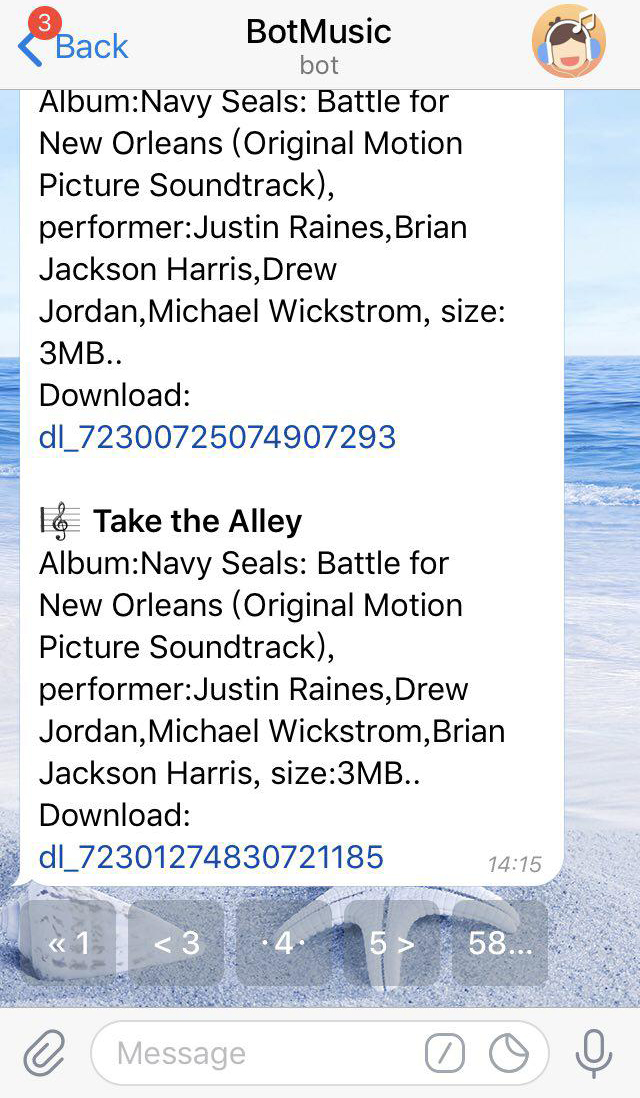
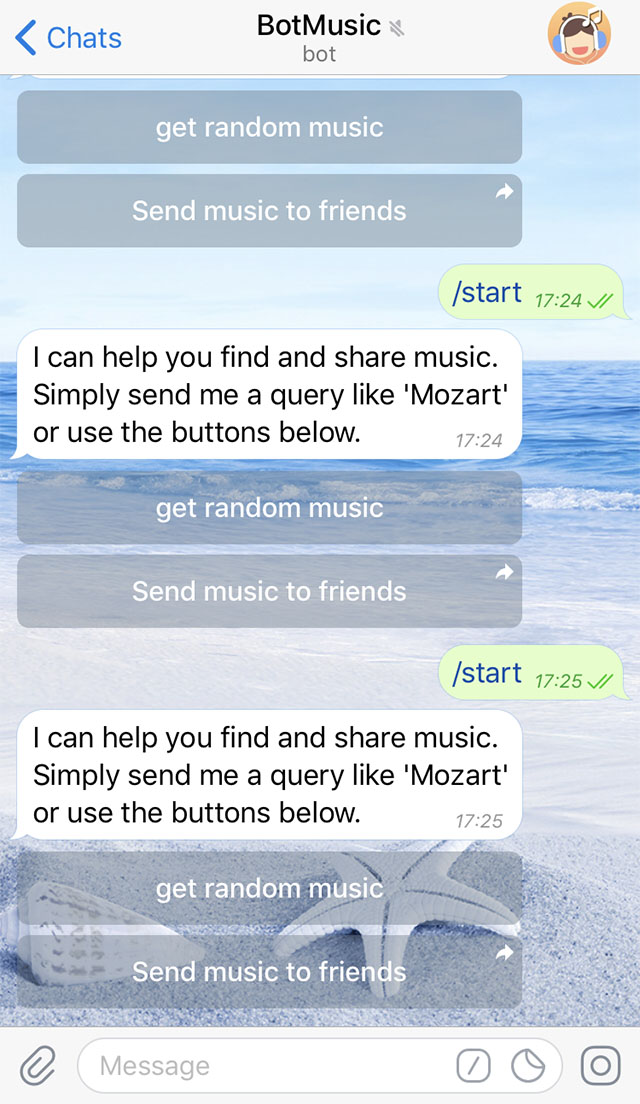
- Send messages and instructions to the bot by starting a chat with it or joining a group. This is useful for chatbots or news bots such as the official @BotMusic bot.
- Send a request directly from the input field by entering the robot's @username and query. This allows inline bots to send content directly to any chat, group or channel.
Messages, commands, and requests sent by users are passed to software running on your server. Our intermediary server handles all encryption and communication with PotatoAPI for you. You communicate with the server through a simple HTTPS interface, which provides a simplified version of PotatoAPI. We call this interfaceOur bot API。
BenpageAboutRobot APIDetailed description of »

There's...that one uses a robot. Just useBotFather(described below) and follow a few simple steps. Once you have created the bot and received the authorization token, go to the botAPIManual to see what you can teach a robot to do.
You can also check out some code examples here »
- The robot has no online status and no timestamp of the last time it appeared. The label "bot" is displayed on the interface.
- Bots have limited cloud storage - old messages may be deleted by the server shortly after being processed.
- Bots cannot actively engage in conversations with users. Users must first add them to the group or send a message. People can find your bot through a link or username search.
potato.im/<bot_username>
- Bot usernames always end in "bot" (e.g.@GIFBot、@Stickerbot)。
- When joining a group, the bot will not receive all messages by default (see Privacy Mode).
- The robot never eats, sleeps, or complains (unless specifically programmed).
There are many robots in Potato (including official Potato robots and third-party robots). To facilitate users to find each robot, Potato provides a convenient search method. Users can find bots in the following ways:
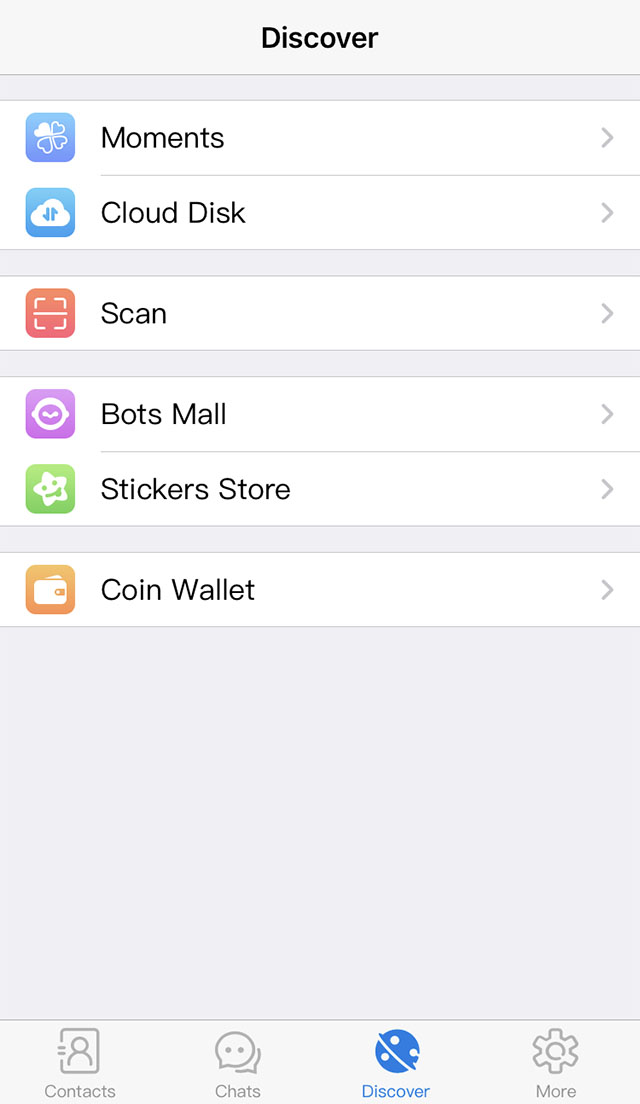
Open Potato and there is a navigation bar at the bottom. Click "Discover" and you will see Bots Mall.
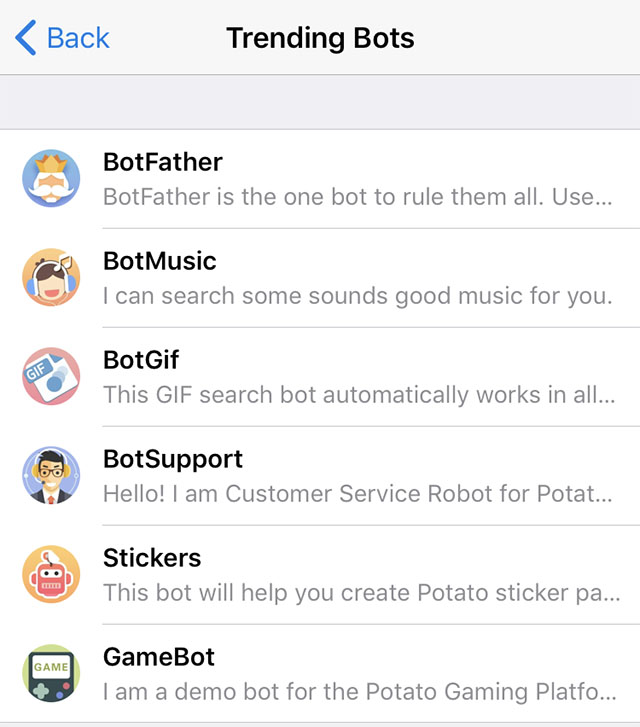
Then click on the robot mall, where the official Potato robot will be displayed, such as@GIFBot, BotMusic and BotGif, etc. After approval, third-party robots can also be displayed in the robot mall.
If there is an audit or any questions please@BotSupport。
The Potato bot is unique in many ways - we offer two keyboards, additional default command interfaces and deep linking, as well as text formatting, and much more.

Users can interact with your bot via inline queries directly from the text input field in any chat. All they have to do is send a message with your bot's username and enter their query.
After receiving a query, your bot can return some results. As soon as the user clicks on one of them, the message is sent to the currently open chat room. This way, people can request content from your bot in their chat, group, or channel.
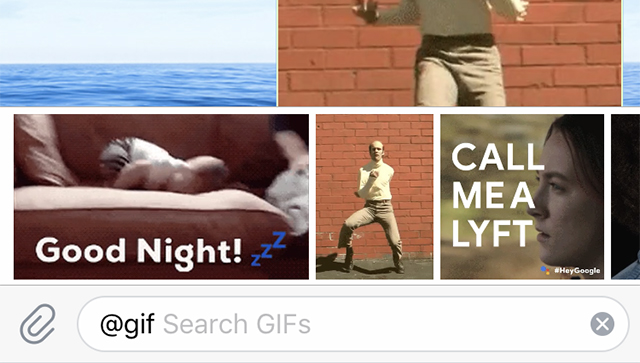
We also provide easy functionality for your bot to switch between online and PM modes.
Read more about direct mode »
Traditional chatbots can certainly be taught to understand human language. But sometimes you need more formal feedback from users - and that's where custom keyboards can be very helpful.
Whenever your bot sends a message, it can deliver a special keyboard with preset reply options (see ReplyKeyboardMarkup). The Potato app that receives a message will display your keyboard to the user. Tapping any button immediately sends the corresponding command. This way you can dramatically simplify user interaction with the bot.
We currently support text and emoji for buttons. Here are some custom keyboard examples:
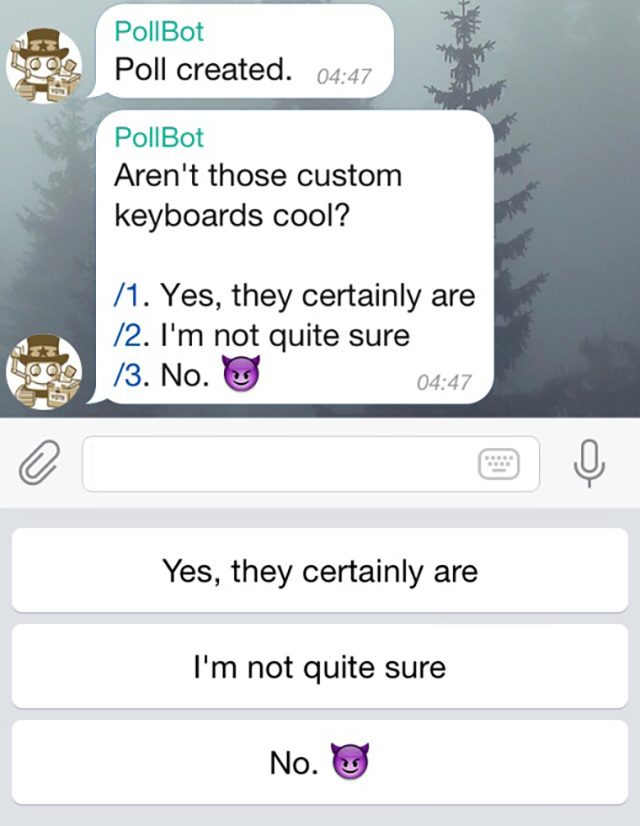
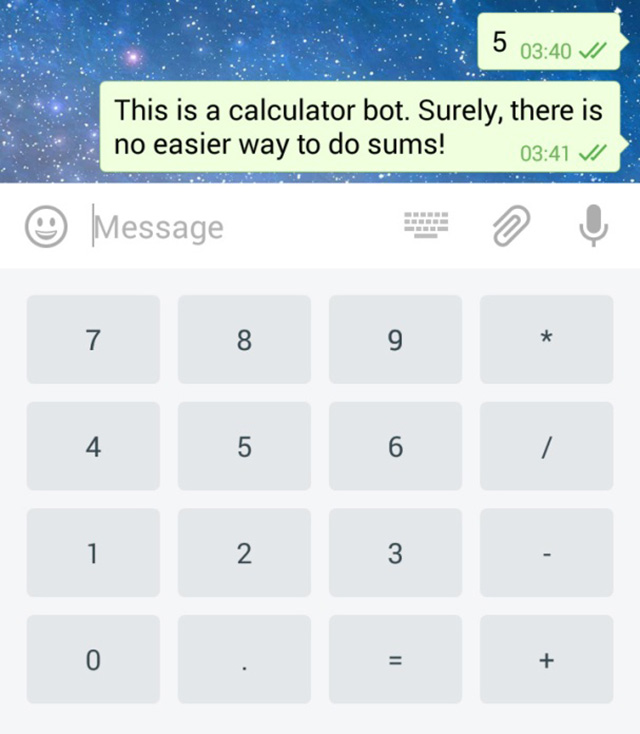
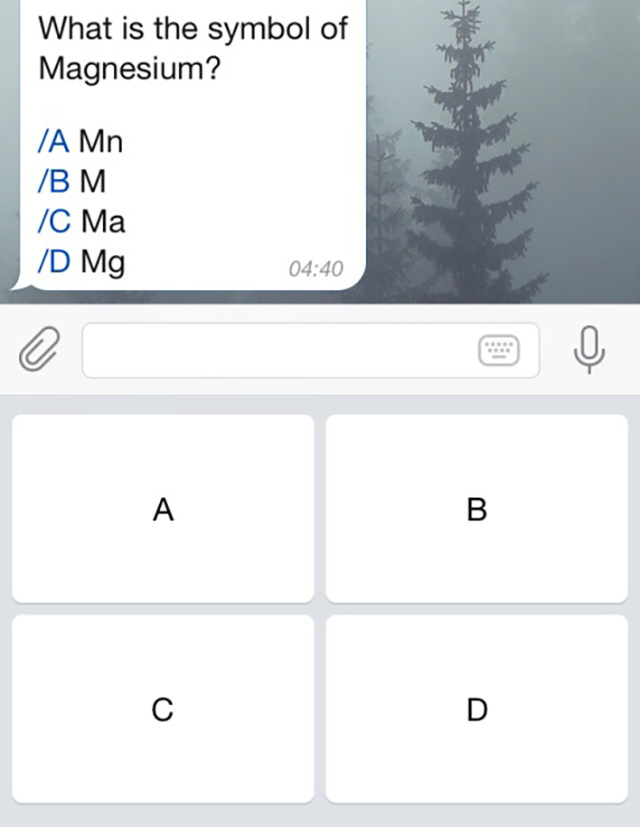
For more technical information on custom keyboards, seeRobot APIManual (see sendMessage).
Online keyboard with real-time updates
Sometimes you'd rather do things without sending messages to the chat. For example, when a user changes settings or scrolls through search results. In this case, you can use the inline keyboard integrated directly into the corresponding message.
Unlike custom reply keyboards, pressing the inline keyboard's buttons will not send a message to the chat room. In contrast, the inline keyboard supports buttons that operate behind the scenes: callback buttons, URL buttons, and switch to inline buttons.
When using the callback button, your bot can update an existing message (or just the keyboard) to keep the chat tidy. Check out these example bots to see the inline keyboard in action: @music, @gif, @sticker.
Read more about inline keyboard and on-the-fly editing »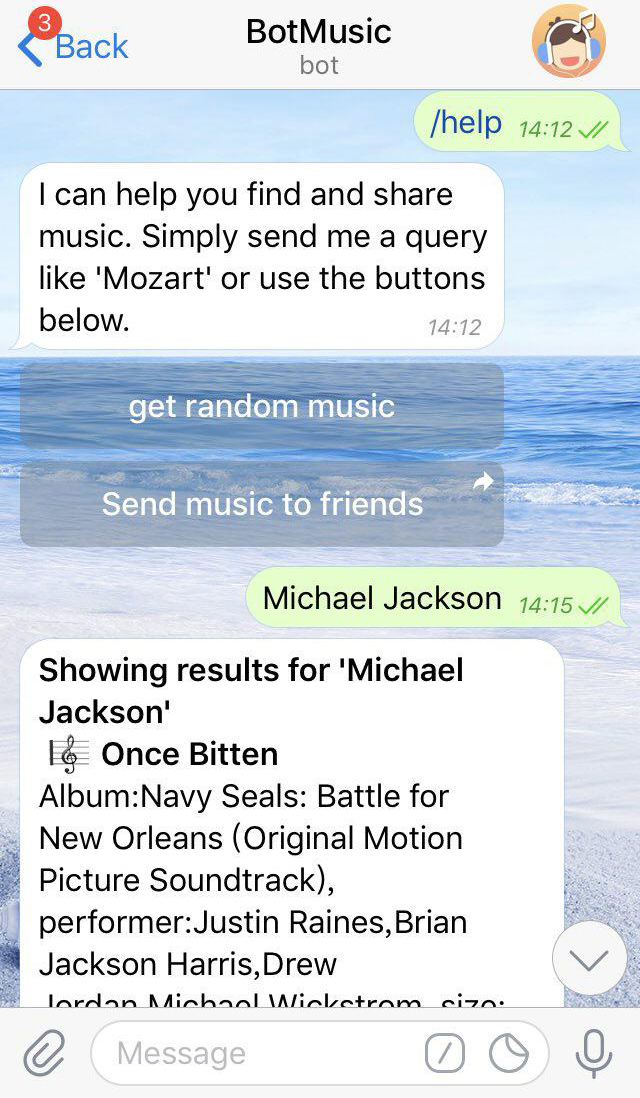
command
Commands provide a more flexible way to communicate with bots. The following syntax can be used:
Commands must always start with a "/" symbol and must not exceed 32 characters. Commands can use Latin letters, numbers, and underscores. To give a few examples:
Messages starting with a slash are always delivered to the bot (replied to both its message and the bot's message by username @mention. The Potato app will:/command [optional] [argument]/get_messages_stats/set_timer 10min Alarm!/get_timezone London, UK
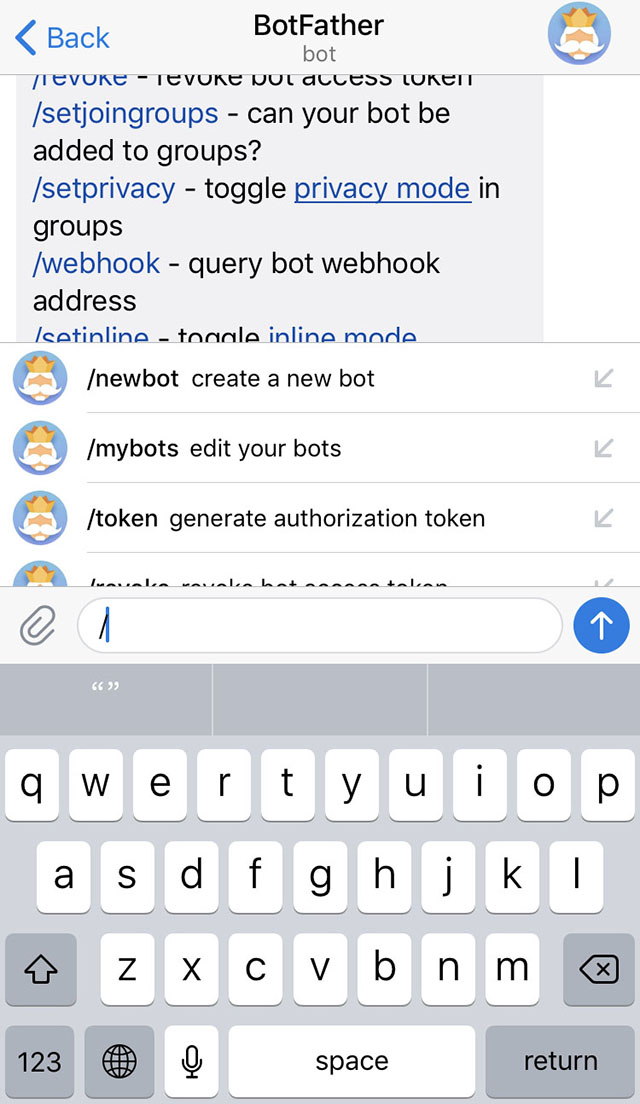
- Suggest a list and description of supported commands when the user enters "/" (to do this you need to request@GIFBotprovides a command list). Clicking on a command in the list will send the command immediately.
- Show an extra (/) button in all input fields for chatting with bots. Clicking it will enter a "/" and display a list of commands.
- Highlight /commands in the message. When the user clicks on the highlighted command, the command is sent immediately.
If there are multiple bots in a group, you can add the bot username to the command to avoid confusion:
This is done automatically when selecting a command via the suggestion list. Remember, your bot needs to be able to handle the commands immediately following its username./start@TriviaBot/start@ApocalypseBot
global commands
To make it easier for users to navigate the robot multiverse, we're asking all developers to support some basic commands. The Potato app will have interface shortcuts for these commands.
-
/start - Start interacting with the user, such as sending a greeting message. This command can also be used to pass additional parameters to the robot.
-
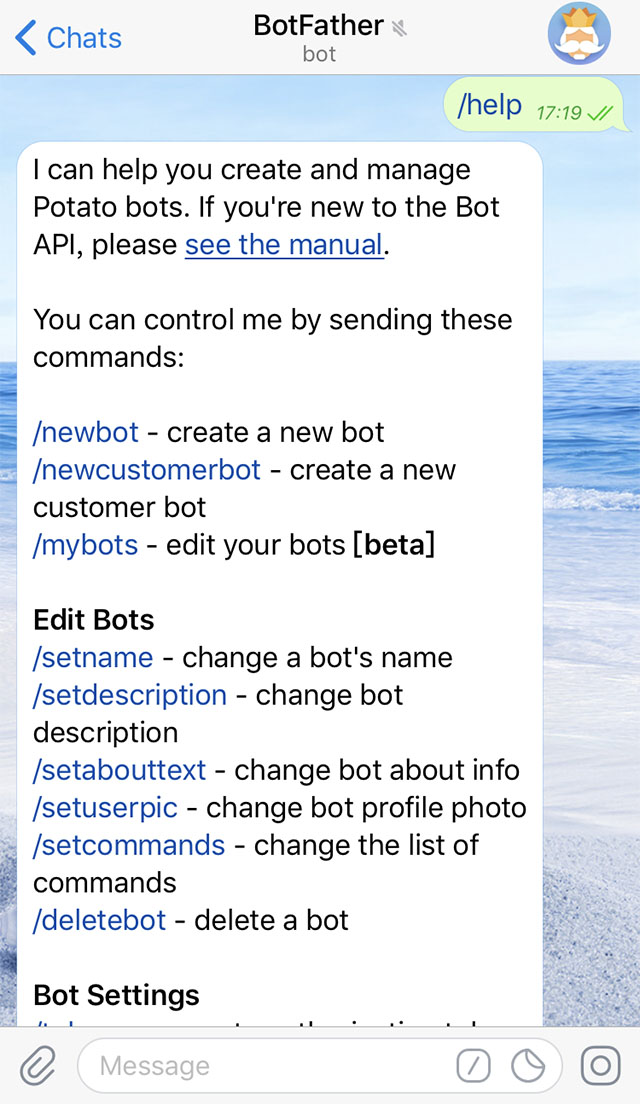
/help - Returns a help message. It could be a short paragraph describing what your bot can do, or a list of commands.
Users will see a start button when they first talk to your bot. Help and settings links will be available in the menu on the bot's profile page.
 Formatting: bold, italics, fixed-width text, and inline links
You can use bold, italic, or lined text, as well as inline links, in your bot messages. Potato clients will render this information accordingly.
Read more Bot API Manual »
Bots are often added to groups to enhance communication between human users, for example by providing news, notifications about external services, or additional search functionality. This is especially true among work-related groups. Now, when you share a group with a bot, you tend to ask yourself: “How can I be sure this little guy isn’t selling my chat history to a competitor?” The answer is – Privacy Mode. Run in privacy mode
's bot will not receive all messages sent to the group by users. Instead, it just gets:
- Messages starting with a slash (see command above)
- Reply to bot's own message
- Service messages (people added or removed from the group, etc.)
- from its members
Channel messaging On the one hand, this allows some of us to sleep better at night (with tinfoil nightcaps on), and on the other – it allows bot developers to save a lot of resources, since they don’t have to deal with thousands of irrelevant messages every day.
Privacy mode is enabled by default for all bots except those that join the group as admins (bot admins always receive all messages). It can be disabled, making the bot receive all messages like a normal user. We only recommend doing this if it's absolutely necessary for the bot to work - users can always see the bot's current privacy settings in the group members list. In most cases, using the force reply option to handle the bot's messages should be sufficient.
Jump to the top to learn everything about the Potato robot »
@GIFBot Be the only robot to rule all robots. It will help you create new bots and change the settings of existing bots.
Use the /newbot command to create a new robot.@GIFBotYou will be asked to enter your name and username, and then generate an authorization token for your new bot.
Your bot name will appear in contact information and elsewhere.
A username is a short name used for mentions and links. The username can be 5-32 characters long, regardless of case, but can only contain Latin letters, numbers, and underscores. Your bot username must end with "bot", such as "david_bot" or "DavidBot".
The token is a string like 110201543:AAHdqTcvCH1vGWJxfSeofSAs0K5PALDsaw and is used to authorize the bot and send requests to the bot API.Potato.im
If your existing token is compromised or lost, use the /token command to generate a new one.
Robot Father Instructions
The rest of the commands are pretty straightforward:
- /mybots — Returns your bot list, with controls for easy editing of settings
- /setname - Change your bot's name.
- /setdescription — Change the bot's description to a short text of up to 512 characters describing your bot. Users will see this text at the beginning of their conversation with the bot, titled "What can this bot do?"
- /setabouttext - Change the robot information, shorter text up to 120 characters. Users will see this text on the bot's profile page. When they share your bot with someone, this text message is sent along with the link.
- /setuserpic — Change the robot's avatar. It's always nice to be able to associate a face with a name.
- /setcommands — Change the list of commands supported by your bot. Users will see these commands as suggestions when typing or chatting with your bot. Each command has a name (must start with a slash "/", alphanumeric and underlined, no more than 32 characters, case-insensitive), parameters and text description. When users type "/" in a conversation with your bot, they will see a list of commands.
- /deletebot — Delete your bot and release its username.
-
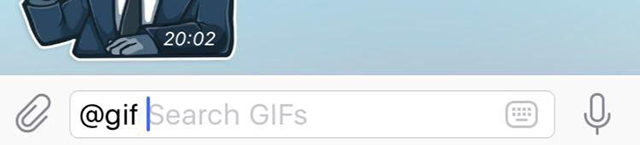
In addition to sending commands in private messages or groups, users can alsoInline queryInteract with your bot. If inline querying is enabled, users can query theText inputEnter your username and query into the fields to call your bot. The query is sent to your bot via an update. In this way, people cantheir chatRequest content from your bot in a , group, or channel without sending a message.
-
-
To enable this option, send /setinline command@BotFather, and provide placeholder text that the user will see in the input field after entering the robot name.
-
For related methods and objects, please seeRobot API Manual。
- Inline bot supportAll types of content in Potato(6 types in total). They can send a variety of content such as music, GIFs, articles, pictures, GIFs, and more.
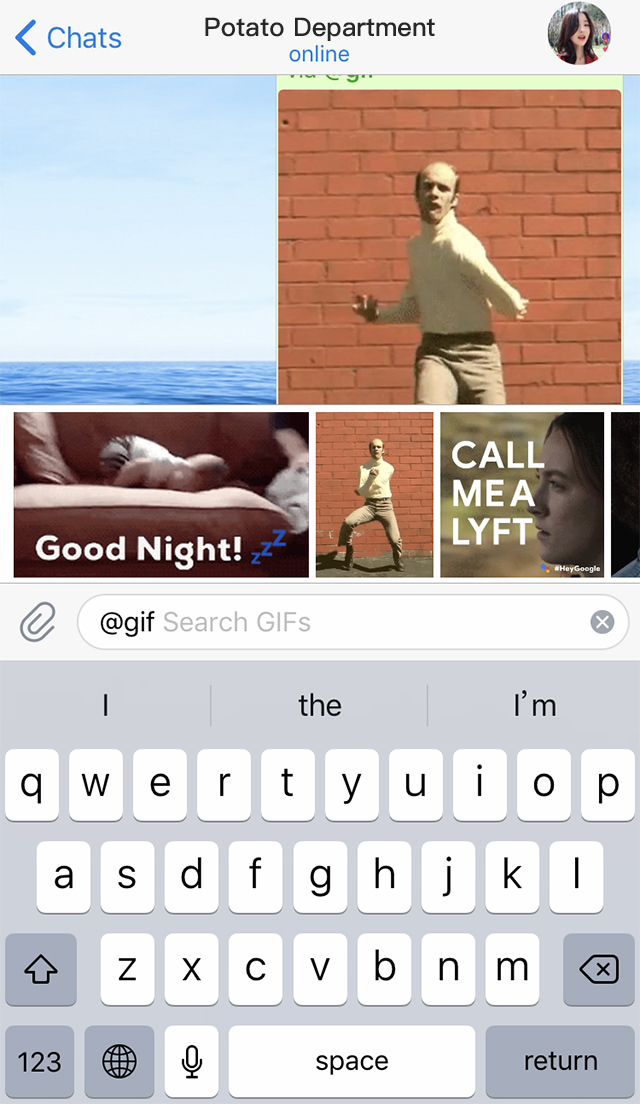
- Clients can display results with vertical or horizontal scrolling, depending on the content type:
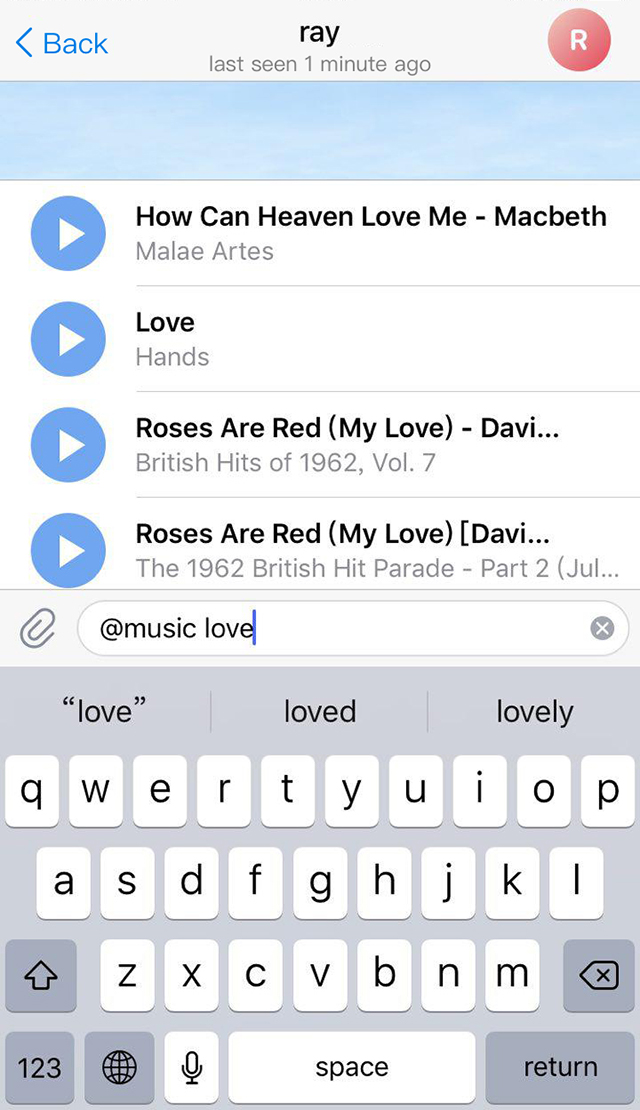
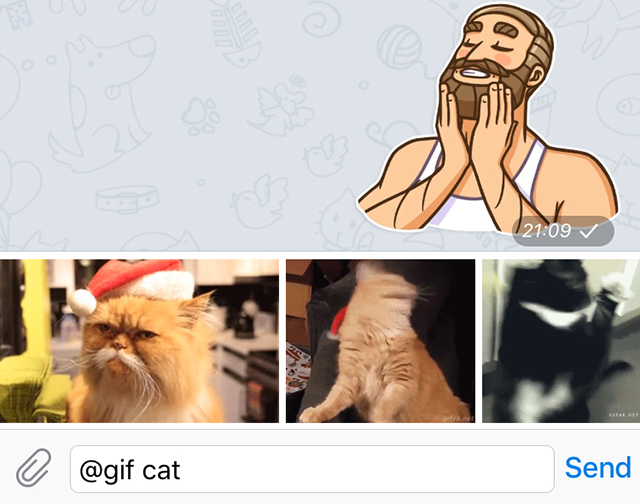
- As soon as the user clicks on the item, the item is immediately sent to the recipient and the input field is cleared.
- Some inline bots can benefit from an initial setup process, such as connecting them to accounts on external services such as YouTube. We've added an easy way to switch between private chats with bots and online chats the user wants to share.
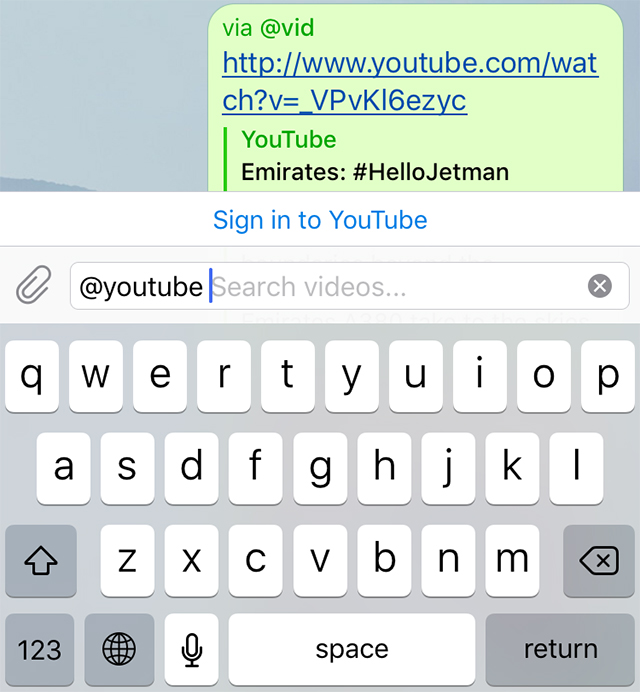
- You can display a special "Switch to PM" button above inline results (or in place of them). This button opens a private chat with the bot and passes the parameters of your choice so you can prompt the user for relevant settings. Once done, you can useswitch_inline_queryThe button's inline keyboard returns the user to the original chat.
- Messages sent with the help of the bot display the username and sender name.
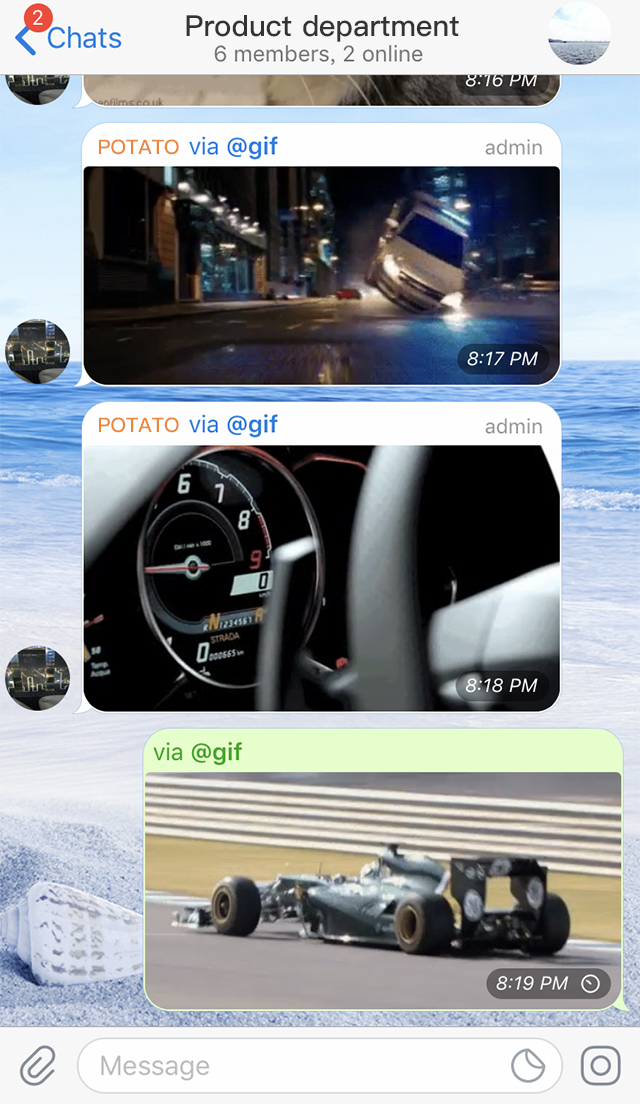
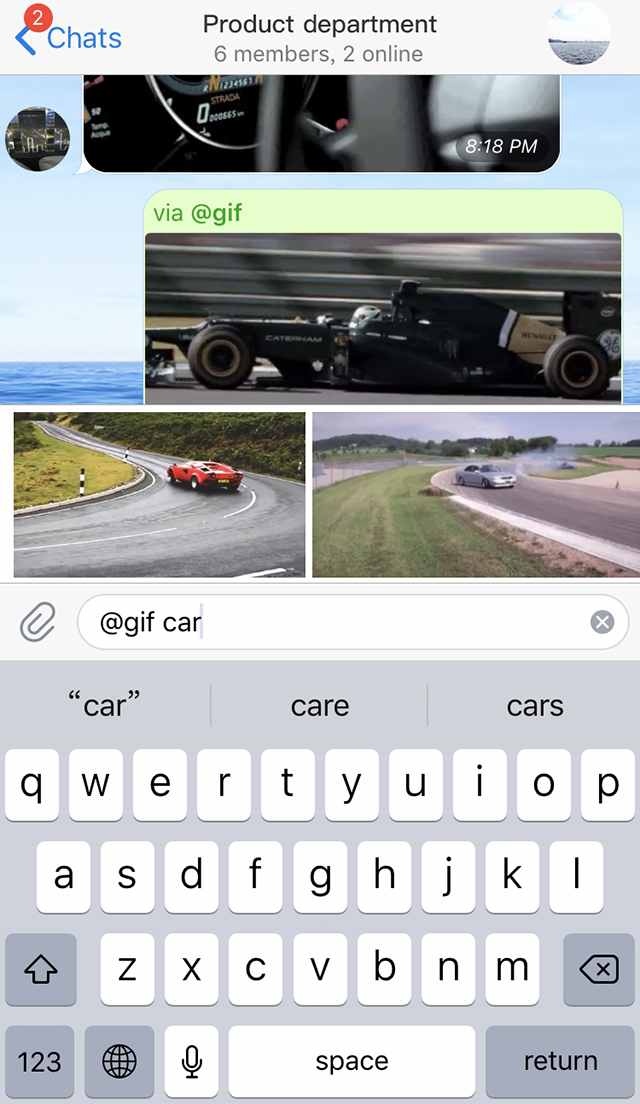
- When the user clicks on the bot username in the message header, the mention is automatically inserted into the input field. Enter in the input field@symbol willA list of suggestions pops up for recently used inline bots.
- Here are some example inline bots if you're interested in seeing them in action. Try these:
@gif – GIF search
@music – Music search
@app – App search
@vote – Search polls
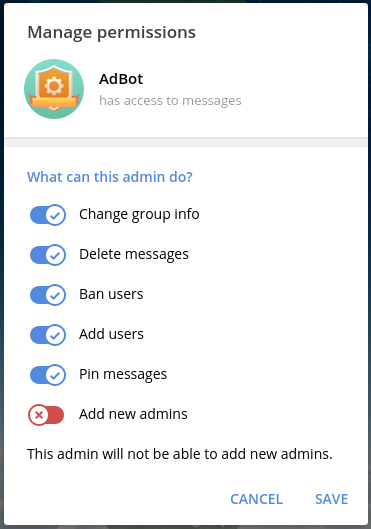
- ADBot should be a member of an organization
- ADBot only supports supergroups
- ADBot should be set as administrator
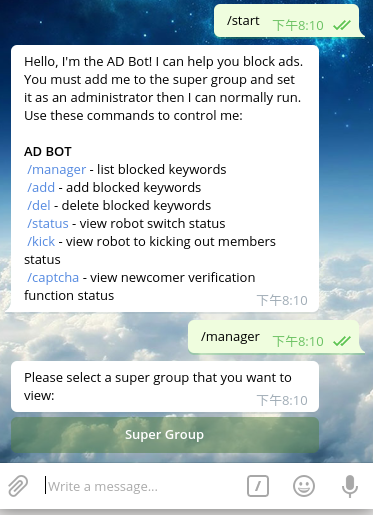
- Use the command to view the groups for which you are an administrator and select the groups you want AD Bot to manage.
/manage
- The details are as follows:
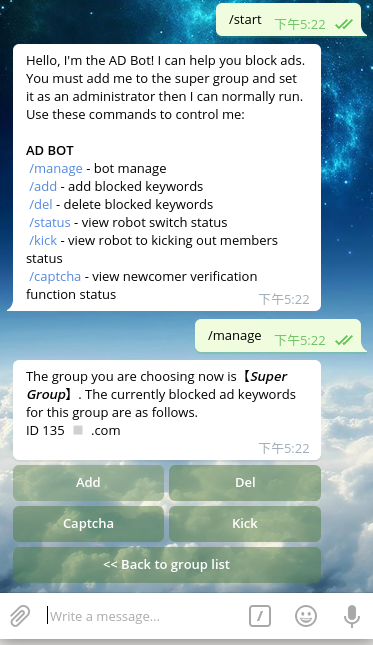
- If you need ADBot to manage supergroups, you should add blocked keywords through the "Add" button in the command (recommended) or use the /add command.
/manage
- The details are as follows:
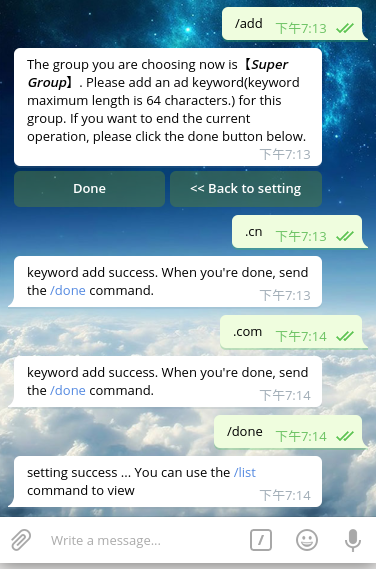
- The maximum length of keywords is 64 characters, and messages are treated as keywords.
- A group can add up to 100 keywords without duplication. If you add keywords repeatedly, ADBot will automatically delete the same keyword.
- Use commands to submit or complete the current operation.
/done
After adding keywords, ADBot will kick users who send sensitive words out of the group and exclude them. For example, if you want to kick out all users who send URLs, you can filter for keywords like ".com" and "www."
- The details are as follows:
- The details are as follows:
- The details are as follows:
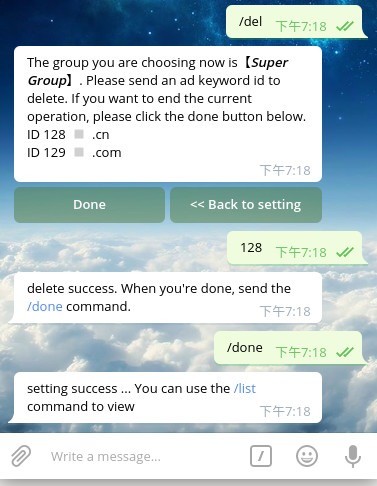
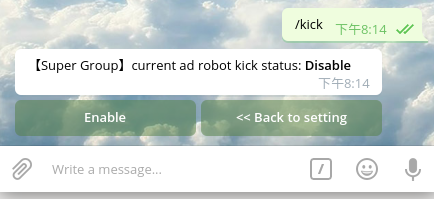
- The function of turning off advertisers is turned off by default. Please check whether it is turned on through the command or the "kick" button in the command (recommended).
/manage/kick
- The details are as follows:
- The verification code function is turned off by default. Use the "Verification Code" button (recommended) in the /manage command to check whether the verification code is on or off, and switch the language type of the verification code.
/captcha
- The details are as follows: